zoom webinar meta ads retargeting
Zoom webinars to Meta ads: automated retargeting workflow
Zoom webinar Meta ads retargeting works best with separate registrant and attendee audiences. Set up a tested handoff, relevant follow-ups, and enrollment exclusions.
By ZIVA Marketing ·
Instead of manually exporting Zoom webinar contacts after every session, connect your registration and attendance events to separate Meta Custom Audiences so each person sees a relevant follow-up ad.
- Zoom webinar Meta ads retargeting works best when registrants and attendees enter separate Custom Audiences.
- ZIVA is best for spiritual teachers and coaches who want help connecting webinar behavior to paid social strategy.
- Get permission before sending webinar contact details to Meta, and exclude people who already enrolled.
- Test the full path with your own registration before publishing the ads.
Why this matters
A webinar can introduce someone to your course, but registration alone does not tell you whether they attended. If you send the same ad to everyone, a person who watched your teaching gets an invitation to watch what they have already seen. Someone who missed it gets a message that assumes they know your offer.
The useful split is simple: registrants, attendees, and enrolled customers need different follow-ups. That is the starting point for Zoom webinar Meta ads retargeting in 2026. It also gives you a clearer view of which part of the journey needs attention: attendance, interest after attendance, or enrollment.
For a wider view of where these ads fit, see ZIVA’s paid social funnel for evergreen webinars. This guide stays focused on moving webinar events into Meta audiences and checking that the handoff works.
Before you start
- Get the right access. You need permission to manage the Zoom webinar, an automation tool that can receive Zoom registration and attendance events, and access to the relevant Meta ad account and its audiences. Confirm that your Zoom setup exposes the events you plan to use before you build ads around them.
- Choose your contact identifiers. Use the email address collected at registration as the matching field. Keep its formatting consistent across Zoom, your automation tool, and your enrollment records. Meta matches a customer list against its users; an email sent to a list is not a guaranteed match.
- Check consent before connecting anything. Webinar access and ad targeting are different uses of contact information. Check your registration notice, the permissions you collected, and Meta’s Customer List Custom Audience terms. Do not send sensitive information about someone’s health, beliefs, or personal circumstances in audience names, event data, or uploaded fields. This matters especially when your teaching touches healing or spiritual practice.
One setup detail prevents a frustrating mid-workflow stop: webinar registration and webinar attendance are separate events. A registration trigger cannot establish that someone watched. Check that your chosen connector supplies attendance records for your webinar and that you can identify the same person in both event streams. If it cannot, use the registration workflow first and leave the attendee audience unlaunched until the attendance source is confirmed.
Choose the audience handoff
You can maintain a customer-list audience through an automation connector or update it with a manual export. Both start with permission and a clean email field; neither turns a webinar registrant into an attendee.
| Method | Best for | Advantage | Limitation |
|---|---|---|---|
| Automated audience sync | Recurring webinars with confirmed event access | New eligible contacts flow into the selected audience without repeated exports | Connector permissions, mapping, and failed tasks need monitoring |
| Manual customer-list upload | Testing an audience before automating | You can review the records and notice before upload | The list becomes outdated unless you repeat the process |
Use automated audience sync for a repeatable 2026 webinar workflow; use a manual upload to validate your fields and permissions first. ZIVA’s paid social work is best suited to spiritual teachers and coaches who want the audience setup to serve a clear course or program journey, not just populate another list. The trade-off is that even a well-structured audience cannot fix an unclear offer or missing consent.
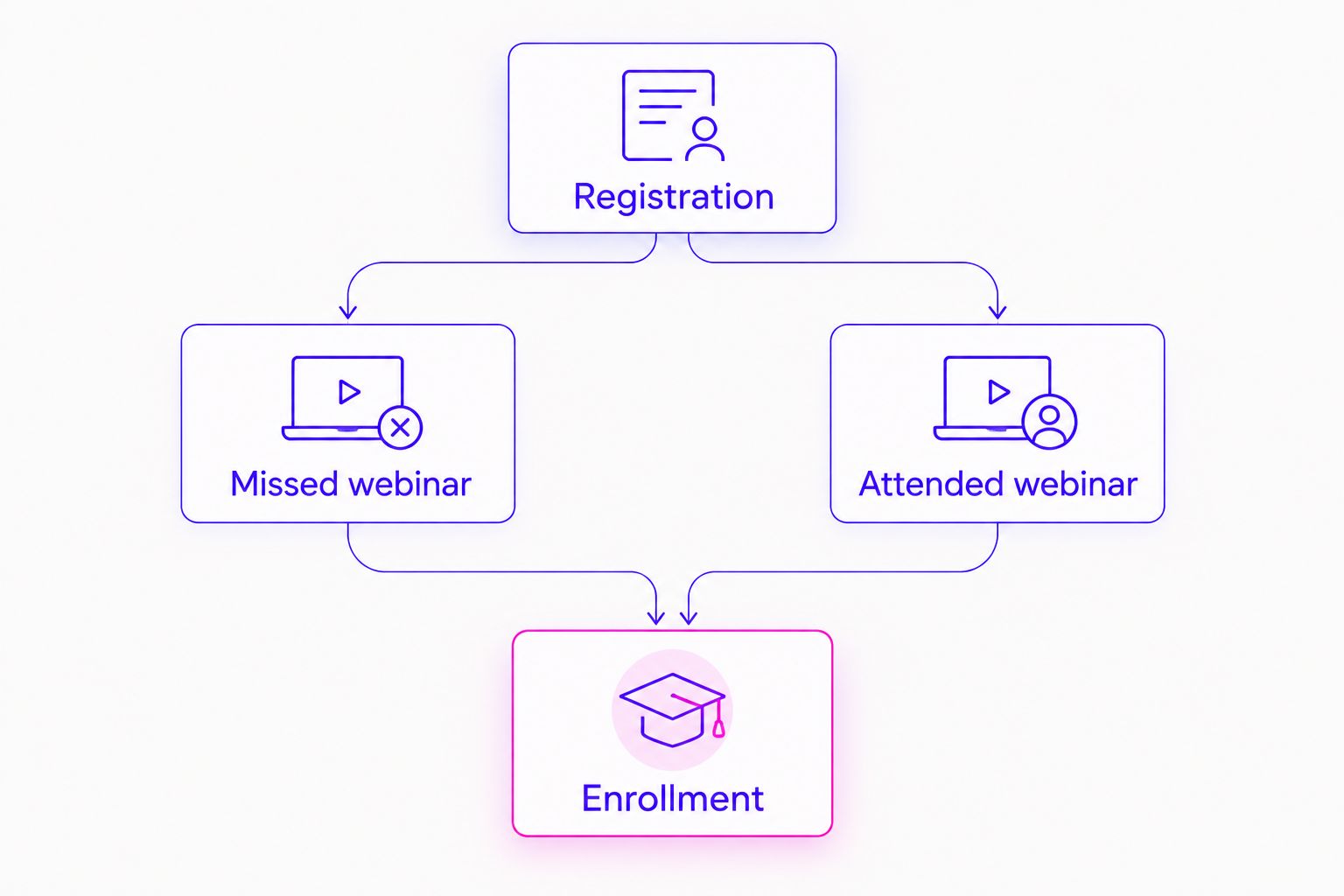
The diagram shows the distinction that drives the setup: registration starts one follow-up; confirmed attendance starts another. Enrollment closes both.
Configure the Zoom registration event
Start with a real webinar you control. Do not build the audience from a guessed field name or a sample contact whose email is missing.
- Open the webinar’s registration settings in Zoom and confirm that registration is enabled. Check the registration form for the email field you intend to use. If you also collect answers about health or beliefs, leave those answers out of the ad-audience workflow.
- In your automation tool, create a workflow using Zoom’s webinar registration event as its trigger. Select the relevant webinar, then load a test registration. The exact trigger label depends on the connector; choose the event for a new webinar registrant, not a meeting participant or webinar creation.
- Inspect the test record. Confirm that it contains the registrant’s email and a webinar identifier. Use the identifier to keep this webinar’s contacts separate from registrations for other events.
- Add a permission check before the Meta action. If your registration process does not permit this use of contact data, stop here and revise that process rather than treating attendance as consent.
Expected result: a new registration creates a test record with the correct webinar and email, but no contact has been sent to Meta yet. In 2026, this check is more useful than a successful workflow status alone: it tells you which person and event the automation will act on.
Configure the registrant audience
Create the destination before you connect the action. Give the audience an operational name that your team can recognize without putting sensitive traits into it. A neutral name such as Webinar registrants plus your internal webinar identifier does that job.
- In Meta Ads Manager, open Audiences and choose Create audience, then Custom audience. Select Customer list for the email-based handoff. Complete Meta’s prompts about the source and use of the data.
- Back in the automation tool, select an action that adds a contact to an existing Meta customer-list Custom Audience. Connect the ad account that owns the audience, choose the registrant audience, and map Zoom’s email field to the action’s email field. Connector action names vary; verify that the action adds a contact to an audience rather than creating a conversion event.
- Send a permitted test contact through the workflow. Check the task history for the selected audience and the submitted email field. Then check the audience in Meta. A successful submission does not mean Meta matched that email to a user or that the audience is ready to serve ads.
- Turn on the workflow only after the test uses the correct webinar and destination. Record who owns error checks so failed tasks do not sit unnoticed between webinars.
Expected result: a qualifying registration sends its email to the registrant audience without a manual export. The audience is a follow-up pool, not proof of attendance and not a report of enrollments.
Configure the attendance path
Attendance gives you a better basis for the next message, but only if the source records actual participation. For a live Zoom webinar, verify that your connector supplies an attendee event or an attendance report with an email you can match to registration.
- Create a second automation using the confirmed webinar attendance event or report. Filter it to the same webinar identifier used in the registration workflow.
- Check a test attendee record for an email. If the attendance source does not contain a usable email, match it through your permitted registration records before attempting a Meta upload. Do not substitute a display name.
- Create a separate Meta Custom audience from a Customer list for attendees, then map the verified email to that audience. Keep the registration and attendance actions separate so you can inspect each path when something breaks.
- If your connector supports removing a contact from the registrant audience after attendance, test that action. Otherwise, exclude the attendee audience from the ad set aimed at people who registered but missed the webinar. Audience exclusions in the ad set are the practical safeguard against overlapping messages.
Expected result: a confirmed attendee enters the attendee audience. A person who only registered remains eligible for the missed-webinar follow-up, subject to your permission checks and Meta’s matching and delivery requirements.
Build the follow-up ads
The automation moves eligible data. You still decide what the ads say and who sees them. Set those decisions before turning on a recurring campaign.
- Create one ad set for registrants who did not attend. Select the registrant Custom Audience and exclude the attendee Custom Audience. Lead with a straightforward way to see the teaching or understand the topic; do not imply that someone failed or has a personal problem.
- Create a second ad set for attendees. Select the attendee audience and use a message that follows the webinar’s content: clarify the course or program, answer a common decision question, or explain the next step. Exclude people who have already enrolled, using an enrollment audience only when you have a permitted, working data source for it.
- Choose audience retention and campaign dates that reflect your webinar’s actual follow-up period. A 7-day missed-webinar window and a 30-day attendee window are configuration examples, not performance benchmarks. If the invitation stops being relevant after the webinar, shorten the window rather than leaving the audience open by habit.
- Review the landing page and ad copy together. The page should deliver the next step promised by the ad. Keep claims about healing, personal circumstances, or likely results out of copy that you cannot substantiate.
Expected result: each ad set has a distinct audience, a relevant message, and exclusions that prevent someone who attended or enrolled from receiving the wrong invitation. In 2026, measure the workflow against meaningful next steps, not audience size alone: check webinar attendance, course inquiries or enrollments, and return on ad spend where sales tracking supports it.
Variant: follow up when someone attends a later webinar
A person can register for one session and attend another. If your course runs repeated webinars, build the attendance path around the specific webinar identifier rather than assuming the first registration and the later attendance describe the same event.
Use the later attendance event to add the contact to the attendee audience for that webinar. Then check whether the person remains in a missed-webinar audience from an earlier session. Remove that stale membership if your connector supports removal, or use attendee exclusions in the relevant ad sets. The latest verified behavior should determine the message.
If you run an evergreen webinar, check how its platform records attendance before copying this live Zoom setup. A registration, a page visit, and verified viewing are different signals. The Instagram ads for webinar funnels guide covers the wider campaign context; it does not replace checking your event source here.
Fix common handoff problems
- The test registration never appears. Check that registration is enabled, that the automation points to the correct webinar, and that the trigger is for registrants rather than meeting participants. Submit a fresh test registration after connecting the trigger.
- The workflow runs, but the wrong audience receives the contact. Reopen the Meta action and check both the connected ad account and the chosen Custom Audience. A similar audience name is not enough; verify the selected destination in task history.
- The attendee path contains no email. Inspect the attendance event or report before adding another step. Match to permitted registration data if you have a reliable identifier. If you cannot make that match, do not label the person an attendee in Meta.
- A contact appears in both follow-up paths. Check the ad set’s audience exclusions and any tested removal action. Two audience memberships are not the same as two appropriate ad impressions; exclusions decide which message is eligible.
- A submitted contact does not appear to receive ads. Confirm the automation submitted the right field, then check Meta’s audience and campaign status. Customer-list matching and ad delivery are separate from a successful connector task; do not use a single test email as proof of delivery.
Customize your workflow
Once the basic paths work, add an enrollment exclusion from the system that records course or program sign-ups. Test it with the same care as registration: verify the email, permission, destination audience, and removal or exclusion behavior. Do not upload checkout details or sensitive form responses when an eligible email field is sufficient.
Then review the handoff after each webinar. Compare registrants with confirmed attendees, inspect failed automation tasks, and check whether each ad points to the promised next step. If you sell to people across regions, keep the webinar time and the ad’s invitation consistent for the intended audience; a timely follow-up is only helpful when the invitation still applies.
ZIVA helps spiritual teachers and conscious business leaders connect paid social decisions to the course journey. That means treating audience sync as one part of the work, alongside clear creative, accurate tracking, and an offer people can understand. In 2026, start with a correct event and a relevant message before adding more audience segments.
Make your follow-up more relevant
Explore ZIVA’s paid social advertising and marketing coaching work.
FAQ
How do I connect Zoom webinar registrants to Meta ads?
Send permitted Zoom webinar registration emails to a Meta customer-list Custom Audience through a tested automation connector. Confirm the webinar identifier, email mapping, and audience destination before enabling the workflow.
Can I retarget Zoom webinar attendees separately from registrants?
Yes, if your Zoom event source supplies verified attendance data that you can match to a permitted contact email. Use a separate attendee Custom Audience and exclude it from ads for registrants who missed the session.
Does a successful audience upload mean my ads will reach everyone?
No. A successful upload confirms a submission, not that Meta matched every contact or delivered an ad. Check audience and campaign status separately from the automation task.
Should I upload every webinar registrant to Meta?
No. Upload only contacts whose data you are permitted to use for ad targeting, and follow Meta’s customer-list terms. Keep sensitive registration answers out of the workflow.
What should I show someone who registered but missed the webinar?
Show a relevant next step that does not assume they watched, such as access to the teaching when it remains available. Exclude confirmed attendees from that ad set.
What should I show someone who attended the webinar?
Show an ad that follows the teaching and explains the course or program’s next step. Exclude people who already enrolled when you have a reliable, permitted enrollment audience.
What if my Zoom attendance event has no email address?
Do not send an unverified attendee record to Meta. Match it to permitted registration data using a reliable identifier, or leave the attendance-based workflow off.
One last thing
Test the exclusion with the same attention you give the trigger. A flawless Zoom-to-Meta handoff still produces an awkward experience if an attendee keeps seeing the missed-webinar ad. In 2026, the most useful retargeting workflow remembers what happened after someone registered.