
dubsado google contacts integration
How to connect Dubsado to Google Contacts for coaching businesses
Build a Dubsado Google Contacts integration with Zapier. Start with one-way contact creation, check email matches, and test your coaching lead workflow.
By ZIVA Marketing ·
Instead of copying coaching inquiries into your address book, set up a Dubsado Google Contacts integration through Zapier to create contacts from new leads while keeping sensitive client information in Dubsado.
- Use Zapier for a one-way Dubsado Google Contacts integration that starts with new coaching leads.
- Search Google Contacts by email before creating a contact to reduce duplicate records.
- Keep coaching notes, intake answers, and marketing consent outside your address-book workflow.
- Ziva provides paid social advertising and marketing coaching, not contact-sync software.
Why this matters
A new coaching inquiry should not create another copy-and-paste task. Connecting your tools gives you a clearer handoff between the place you manage inquiries and the address book you use for everyday communication.
A Dubsado Google Contacts integration is an address-book workflow, not a marketing-consent system or a revenue-tracking setup. A saved contact does not tell you whether someone enrolled, agreed to promotional emails, or generated a return on ad spend.
At Ziva, we help spiritual teachers, healers, and coaches with paid social advertising and marketing coaching. This guide keeps contact organization separate from those marketing decisions so you can build a useful workflow without asking it to do everything.
For your 2026 setup, start with one direction: Dubsado sends contact details to Google Contacts. Leave updates and broader automation until that first handoff works.
Before you start
- Account access: Have access to your Dubsado account, a Zapier account, and the Google account that should own the contacts. Confirm that your accounts support the trigger, search, and action steps before building the workflow.
- Safe test materials: Prepare 3 test inquiries using email addresses you control. Include a new address, an existing Google contact, and an inquiry without an email address. Keep real intake answers out of your tests.
- The easy-to-miss gotcha: A project event is not necessarily a new person. One client can have several Dubsado projects, so searching by email before creating a contact matters even when the project itself is new.
Choose a business-owned Google account rather than a personal account you happen to have open. If several Google accounts are signed in, check the account selected during authorization and again in the Zapier step.
The instructions below use Zapier’s app and event names. During your 2026 setup, confirm the events and fields offered in your connected accounts before publishing; do not substitute an unrelated trigger just to finish the workflow.
Choose the contact workflow
The simplest starting point creates missing contacts without rewriting existing ones. An update workflow adds another responsibility: deciding which app owns each field.
| Workflow | Best for | Benefit | Limitation |
|---|---|---|---|
| Find or create | Coaches who want new inquiries in their business address book | Searches before creating a contact | Existing contact details remain unchanged |
| Find and update | Coaches who need selected Dubsado details reflected in existing contacts | Keeps approved fields aligned | Blank or outdated source values need protection |
Start with find or create. It gives you a smaller workflow to inspect and avoids overwriting a carefully maintained contact with incomplete inquiry details.
Neither option is a full two-way sync. Editing a name in Google Contacts does not automatically change the corresponding Dubsado record in this guide.
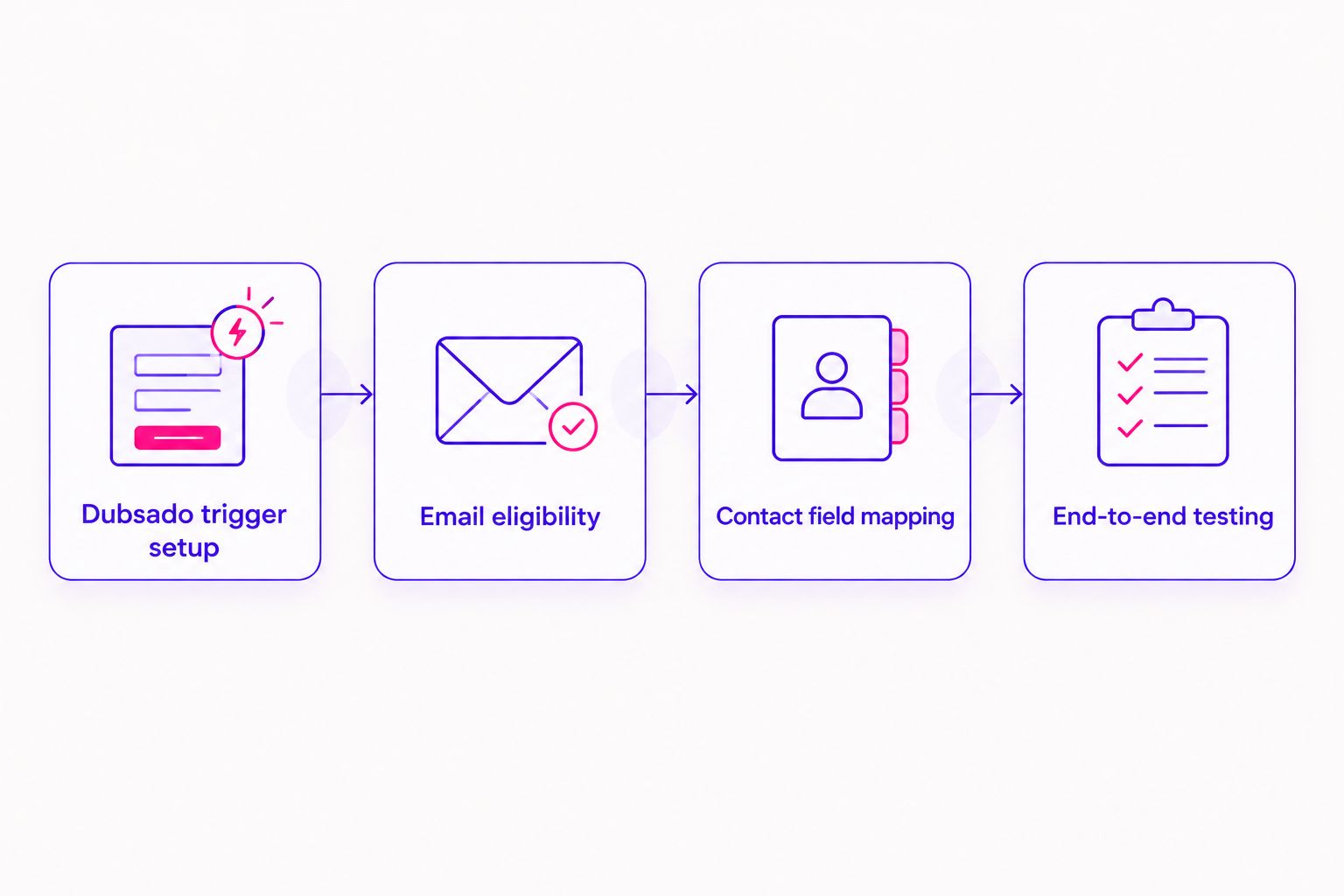
Dubsado trigger setup
- Create a Zap in Zapier. A Zap is an automated workflow with a trigger that starts it and action steps that follow.
- Select Dubsado as the trigger app. Choose New Project as Lead for a workflow that begins when an inquiry becomes a new lead project.
- Connect the intended Dubsado account. Complete the authorization requested by Zapier using credentials belonging to the business account.
- Create a fresh, clearly named test inquiry in Dubsado. Use an email address you control and leave private coaching information out of the record.
- Select Test trigger. Open the returned sample and identify the client’s email, first name, and last name before continuing.
Check the sample itself, not just the successful connection message. A successful login confirms access; it does not confirm that the trigger supplies the person or fields you need.
If your inquiry process does not create a lead project, stop here and choose a trigger that matches the event your process actually produces. Do not assume that signing a contract, receiving a payment, and creating a lead are interchangeable events.
Expected result: Zapier receives a sample lead project containing the intended client’s contact details. You can distinguish that client from your own account owner or another project participant.
Email eligibility and contact search
- Add Filter by Zapier before the contact action. Require the client email field to contain a value so an incomplete inquiry does not create an unusable contact.
- Add Google Contacts and select Find Contact. Connect the business Google account chosen before setup.
- Map the Dubsado client email into the search input. Use the client email from the trigger, not an email address typed into the editor.
- Enable the search step’s option to create a contact when no match exists. Map the new-contact fields that appear, including the email and available name fields.
- Select Test step with your existing-contact sample first. Inspect the returned contact and confirm that its email matches the inquiry exactly.
Email is a practical matching field, but it is not a permanent identity. Someone who uses a different address for a later program can appear to be a different person.
If your action configuration does not offer creation after an unsuccessful search, use a separate Create Contact action on a no-match branch. Keep the same rule: a successful match must not continue into contact creation.
Expected result: An inquiry with an email reaches the search step. An existing email returns the existing Google contact rather than creating another record.
Contact field mapping
- Map the Dubsado client email to Email. Map separate name values to First Name and Last Name when those source values are available.
- Add a phone number only when it belongs to the client and serves a clear communication purpose. Preserve its country code when the source includes one.
- Leave coaching notes, health information, intake answers, and payment details unmapped. An address book does not need the full story of someone’s work with you.
- Inspect the new-contact configuration for fixed sample values. Replace any test name or address with the corresponding Dubsado field before the live test.
- Run the new-address sample through Test step. Open Google Contacts in the connected account and inspect the saved record.
Map the minimum useful information, not every field you can see. Names and an email address are a clearer starting point than a contact record filled with project-specific details.
Keep one source field tied to one destination field. Combining unrelated information into a name field makes the contact harder to search and creates cleanup work later.
Expected result: Google Contacts contains a readable contact with the intended name and email. The record contains no private intake content or fixed test details.
End-to-end testing and publishing
- Run 3 test inquiries through the complete workflow: a new email, an existing email, and a missing email. Inspect each step’s result rather than relying on the final status alone.
- Confirm that the new email produces 1 new contact. Confirm that the existing email returns the existing contact and that the missing-email inquiry stops before contact creation.
- Record the connected Dubsado account, destination Google account, matching field, and mapped fields in your internal setup notes. Date this workflow record 2026.
- Select Publish after the tests pass. Submit a fresh inquiry through your normal lead process and inspect the corresponding entry in Zapier’s run history.
An editor test proves that sample data can pass through configured steps. A fresh inquiry checks the actual handoff from your lead process.
Expected result: A live inquiry reaches the intended Google account without creating an extra record for an existing email. You also have a clear record of who owns the workflow.
Update an existing contact when details change
Best for: A coaching business that has already tested contact creation and needs selected contact fields updated from Dubsado.
An update workflow needs an event that fires when the relevant source details change. Do not reuse New Project as Lead and expect later profile edits to trigger it. Check the Dubsado events offered in your connected account; if none represents the change you need, keep updates manual rather than building around the wrong event.
When an appropriate event exists, configure the update path:
- Search Google Contacts using the client email supplied by Dubsado.
- Pass the identifier returned by that search into Update Contact. Do not type a fixed contact identifier into a reusable workflow.
- Map only fields that Dubsado should control. Keep Google-managed fields outside the update action.
- Prevent empty source values from replacing useful destination values. Test the action with a blank optional field before publishing.
- Test an email change separately. Searching by the new address does not establish that it belongs to a contact saved under the old address.
The benefit is less manual editing. The trade-off is greater responsibility for matching and field ownership.
For your 2026 workflow, keep creation and updates separately named so you can identify which automation changed a contact. Avoid a reverse workflow until you have rules for conflicting edits and repeated triggers.
Troubleshooting
A client appears more than once
Inspect the run history and compare the actual email values. Check whether multiple projects triggered creation, whether the search found a contact, and whether another active Zap also creates contacts.
Make the contact search the gate before creation. Resolve existing duplicates separately; changing the automation does not remove records already created.
The contact appears in the wrong Google account
Open the Google Contacts step and inspect its connected account. Reconnect the intended business account, then retest with a fresh sample.
Check where the contact was saved before repeating the test. Otherwise, the second attempt can leave test records in several accounts.
The workflow runs, but names are wrong
Inspect the mapped values in the action’s input. A field can contain a fixed sample name even when the trigger supplies the correct client name.
Replace fixed text with the appropriate source fields. Confirm that the selected sample represents the client rather than the project owner.
Existing contacts lose useful details
Pause the update workflow and inspect its field mappings. Look for blank source values or fields that Google Contacts, rather than Dubsado, should own.
Remove unnecessary mappings and test missing values deliberately. Restore affected details from your records before turning updates back on.
A new inquiry never starts the workflow
Confirm that the Zap is published and that the inquiry created the selected Dubsado event. Inspect the trigger connection and run history for authorization errors.
Create a fresh eligible inquiry after correcting the issue. A successful sample test does not mean an older project will automatically enter the live workflow.
Customize your workflow
Expand the workflow around a clear business need, not around every available connection. Useful next decisions include which inquiries belong in your address book, who owns contact corrections, and how you handle deletion requests across connected tools.
Keep marketing permission in the system that records it. Do not use presence in Google Contacts as proof that someone agreed to launch emails or advertising audiences.
Ziva is best for spiritual teachers and coaches seeking paid social advertising and marketing coaching. Contact organization supports your operations, while campaign measurement needs its own events and checks.
If your next priority is enrollment tracking, define the outcome first: an inquiry, booked call, and completed purchase represent different stages. Connecting an address book does not measure those stages or establish which advertisement produced them.
For a 2026 maintenance check, review account access, mapped fields, and failed runs whenever your inquiry form or client process changes. Keep a named owner for those checks so a small connection issue does not become ongoing manual work.
FAQ
What's the simplest Dubsado Google Contacts integration for a coach?
Start with a one-way Zapier workflow that searches Google Contacts by the Dubsado client email and creates a contact only when no match exists. Keep updates out of the first version so you can test matching without overwriting existing details.
Does connecting Dubsado to Google Contacts create a two-way sync?
No. The workflow in this guide sends selected details from Dubsado to Google Contacts. Changes made in Google Contacts do not automatically return to Dubsado.
Will every new Dubsado project create a duplicate contact?
A project should create a contact only when the email search finds no existing match. Several projects can belong to the same client, so project creation alone is not a reliable reason to create another person record.
Can I copy my existing Dubsado clients into Google Contacts?
Treat existing clients as a separate migration rather than assuming the new-lead trigger will copy them. Review the export and import options in your accounts, remove unnecessary fields, and test a small sample before transferring the rest.
Can the integration update a client's changed email address?
An email change needs a reliable way to identify the original contact. Searching only for the new email does not identify a record stored under the old address, so test a stable-identifier approach or handle email changes manually.
Should I send coaching intake answers to Google Contacts?
No. Keep coaching intake answers and sensitive client notes outside this address-book workflow. Transfer only the contact details needed for the intended communication task.
Does a Google contact count as permission to send marketing emails?
No. Saving someone in Google Contacts does not record marketing permission. Use your consent records and email platform to decide who receives promotional messages.
One last thing
The most useful test is the second inquiry from the same person. A workflow that handles a brand-new email can still create duplicates when a returning client starts another project.
Before you consider the setup complete, submit another eligible inquiry with the same test email. Confirm that the workflow finds the original contact. That small check protects the simplicity you wanted from automation in the first place.