
dubsado activecampaign integration
How to connect Dubsado to ActiveCampaign for coaching businesses
Set up your Dubsado ActiveCampaign integration with Zapier. Map coaching leads, protect email consent, and test follow-up before you publish your workflow.
By ZIVA Marketing ·
Instead of copying coaching inquiries into your email platform, use a Dubsado ActiveCampaign integration through Zapier to create or update contact records and route people into the right follow-up.
- Use Zapier for a Dubsado ActiveCampaign integration that connects coaching inquiries with email follow-up.
- Match contacts by email address, and keep marketing permission separate from project status.
- Test new contacts, existing contacts, and missing permission before publishing.
- ZIVA Marketing provides paid social advertising and marketing coaching for spiritual teachers, healers, and conscious business leaders.
Why this matters
A coaching inquiry is a person asking for your attention, not just another contact to organize. When you move records manually, your email follow-up depends on remembering which form someone completed and what they need next.
The useful connection is simple: Dubsado records the client event, Zapier passes the relevant information, and ActiveCampaign handles the email-side contact record. Keep project management and email permission separate. A new inquiry does not automatically authorize a newsletter subscription.
ZIVA Marketing is best suited to spiritual teachers, healers, and coaches seeking paid social advertising and marketing coaching. This guide focuses on the handoff that supports that marketing work, rather than replacing your existing client process.
For a broader look at your systems, see our guide to CRM tools for coaching businesses. A CRM is the system you use to organize contacts and their relationships with your business.
Before you start
- Gather access to Dubsado, ActiveCampaign, and Zapier, including permission to connect accounts and edit automations. Confirm that your accounts support the integration features you need before building your 2026 workflow.
- Prepare a sample Dubsado inquiry using an email address you control. Write down the information you need to transfer: email, name, inquiry source, and an explicit marketing-permission response when collected.
- Separate project creation from permission to receive marketing. The non-obvious gotcha is that a Dubsado project event does not prove email consent. If the trigger does not include your permission field, keep newsletter enrollment outside this workflow.
Use a dedicated testing tag rather than a tag that already starts a live email sequence. This protects existing contacts while you check the connection.
What each tool should handle
These tools perform different jobs. Treat them as a connected workflow, not interchangeable alternatives.
| Tool | Best for | Useful role | Limitation to plan around |
|---|---|---|---|
| Dubsado | Coaching inquiry and client administration | Supplies the project event that starts this workflow | Project status alone does not establish marketing permission |
| Zapier | Passing information between the tools | Connects the trigger, contact action, and routing steps | You must maintain field mappings and review failed runs |
| ActiveCampaign | Email contact organization and automated follow-up | Stores the contact and applies your email-routing rules | Incorrect tags or entry rules can send the wrong follow-up |
The benefit is less repeated entry. The trade-off is another process to maintain when forms, tags, or account connections change.
Dubsado trigger configuration
Start with new inquiries rather than every possible client event. A narrow workflow is easier to test and understand.
- Create a Zap in Zapier. A Zap is an automated workflow with a starting event and one or more actions.
- Select Dubsado as the trigger app.
- Select New Project as Lead as the trigger event. This workflow is for a project created as a lead, not a general update to any existing project.
- Connect your Dubsado account through Zapier's connection prompt. Complete the authentication requested for that connection, and keep credentials out of shared documents.
- Create a fresh sample inquiry through the Dubsado process you actually use. Use a recognizable test name and an email address you control.
- Select Test trigger, then inspect the returned record. Confirm that the sample contains the intended email address and project information.
Expected result: Zapier displays your test lead and the fields available for later steps. Do not continue with a sample that lacks an email address or belongs to a different inquiry process.
For your 2026 setup, record the exact trigger you selected in your internal process notes. An automation described only as “Dubsado sync” gives the next person too little information to maintain it.
Choose the event that reflects your real process
Creating a lead project and changing an existing project's status are different actions. Test the action your team actually performs, not just the action that produces a convenient sample.
If your inquiry form updates an existing record rather than creating a new lead project, this trigger is not a substitute for that update event. Adjust the workflow around the event your account exposes instead of expecting the new-project trigger to detect every change.
ActiveCampaign contact mapping
Use the email address to identify the person. Keep the project details as supporting information, not as a replacement for contact identity.
- Add an action and select ActiveCampaign.
- Choose Create or Update Contact. This action lets the workflow handle a new inquiry and an inquiry from someone already in your contact database.
- Connect the intended ActiveCampaign account. If authentication requests an API URL and API key, retrieve them from Settings, then Developer, in ActiveCampaign. Treat the API key like a password.
- Map the Dubsado email value into the action's required email field. Insert the value from the trigger instead of typing your sample address into the field.
- Map the person's first and last names where the source provides those values separately. Do not place a full name into both destination fields.
- Map only the additional information your follow-up needs. Leave newsletter list enrollment out of this step unless you have a separate, verified permission rule.
- Select Test step, then open the resulting contact in ActiveCampaign and inspect the saved information.
Expected result: ActiveCampaign contains the intended contact, with the correct email and name. An existing contact should be updated rather than treated as a different person because of a project name.
Keep the field map small
For example, transfer the inquiry source into a dedicated field only if that information is present in the Dubsado sample. A field labeled “source” is useful only when everyone agrees what it means.
Avoid copying coaching intake narratives, health details, or private session notes into marketing fields. Your email workflow needs enough context to respond appropriately, not a copy of someone's personal story.
Preserve existing information unless the incoming value should replace it. Inspect blank fields during testing so an incomplete inquiry does not become an instruction to clear useful contact details.
Permission and follow-up routing
Decide what the contact is eligible to receive before connecting a live email sequence. Contact creation and marketing enrollment are separate decisions.
The sequence below summarizes the workflow. Permission controls the marketing branch, not whether the inquiry deserves a personal response.
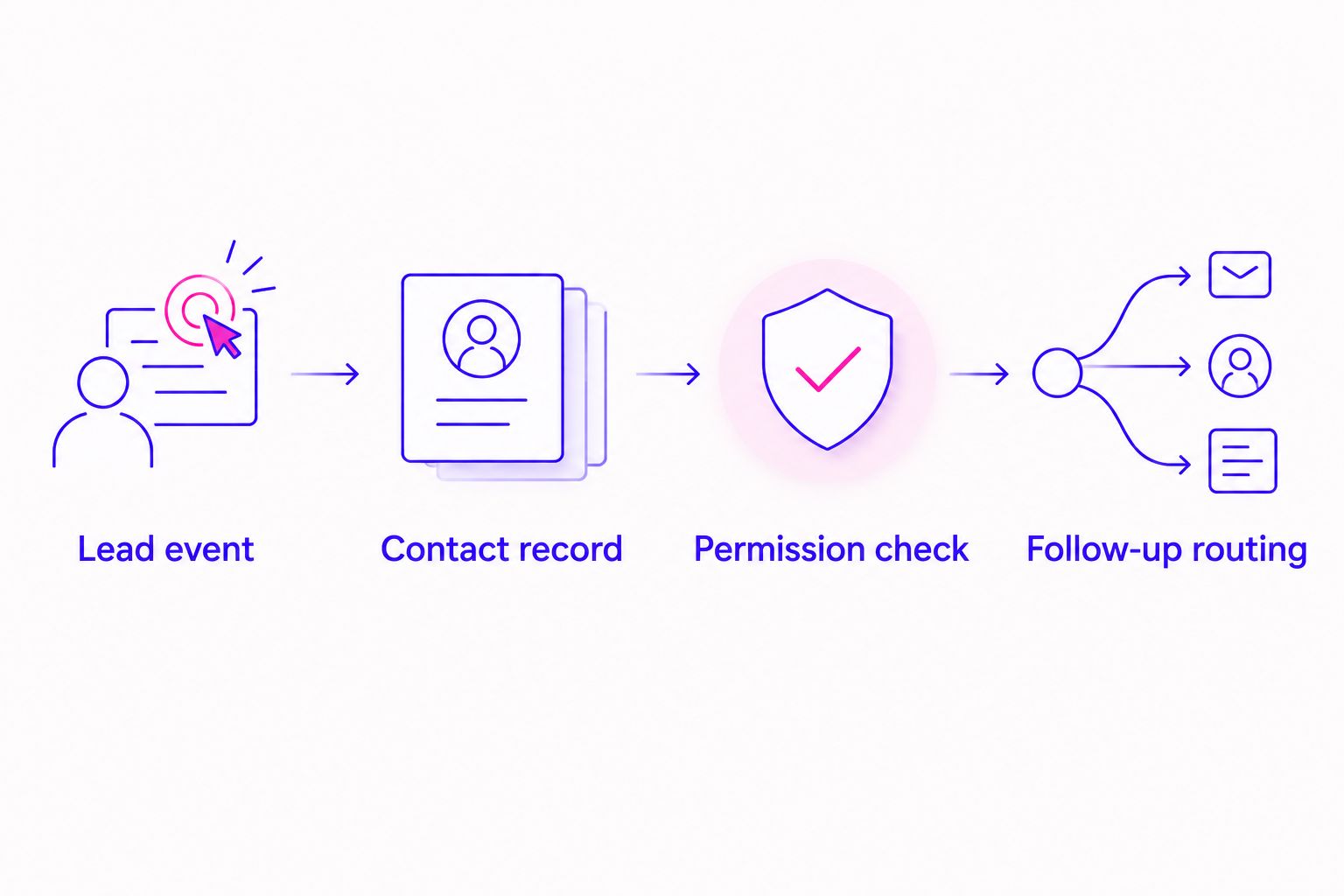
- Lead event: Confirm that the Dubsado event represents the inquiry you intend to handle. Exclude unrelated project types using a filter when your trigger data provides a reliable distinguishing field.
- Contact record: Use the contact returned by the ActiveCampaign action in later steps. Avoid manually entering a contact identifier from your sample.
- Permission check: If this workflow will subscribe someone to marketing, add Filter by Zapier before that enrollment. Require the explicit permission value you collected; an empty response should not pass.
- Follow-up routing: Add Add Tag to Contact in ActiveCampaign when a tag is needed to organize this inquiry. Use a neutral source tag, such as
dubsado-inquiry, as your own naming convention—not as proof of consent. - Review any ActiveCampaign automation connected to that tag. Check its entry conditions, audience, and re-entry settings before allowing real contacts through.
Expected result: The contact receives the intended organizational tag, while marketing enrollment follows its own permission rule. A source tag should not silently subscribe everyone to promotional emails.
For a 2026 course launch, this distinction keeps an application, a newsletter signup, and a client onboarding event from becoming the same audience. Each event calls for a different message.
Testing and publication
Test the outcome in ActiveCampaign, not just whether Zapier shows a successful step. A technically successful transfer can still put someone into the wrong sequence.
- Prepare 3 test cases: a new contact with permission, an existing contact, and an inquiry without marketing permission.
- Use 1 controlled email address per test case so you can identify exactly which record and messages belong to each run.
- Send each case through the actual Dubsado entry process. Inspect the trigger data, contact action, tag action, and permission decision.
- Confirm that the existing-contact case preserves the correct identity and does not unexpectedly restart an email sequence.
- Confirm that the no-permission case stays out of marketing enrollment. It can still follow your separately defined inquiry-response process.
- Select Publish only after the expected outcomes match the actual records. Remove test tags and review any test contacts before sending live campaigns.
Expected result: Each case reaches the intended destination without unintended enrollment or duplicate follow-up.
Keep a short acceptance record for your 2026 workflow: triggering event, mapped fields, permitted audience, and person responsible for fixing failures. That record is more useful than a screenshot showing only that the Zap is on.
Second workflow: follow up when a contract is signed
A signed contract represents a different relationship from a fresh inquiry. Use a separate workflow when you want ActiveCampaign to recognize that change.
Create 2 separate workflows for inquiry capture and contract-based follow-up. This makes their purposes visible and lets you pause one without changing the other.
- Create another Zap with Dubsado as the trigger app and Contract Signed as the event.
- Test with a contract you control, then confirm which contact and project the returned event identifies.
- Use Create or Update Contact in ActiveCampaign, matching the signer through the correct email field.
- Apply a separate client-stage tag using Add Tag to Contact. Review the automation that responds to that tag before publication.
- Check whether prospect follow-up should stop when the client-stage tag appears. Configure that exclusion in the relevant ActiveCampaign automation.
Expected result: Signing a contract changes the person's follow-up path without treating the signer as a new newsletter subscriber.
A signed contract is not the same as a completed payment. Do not use this event to report collected revenue or label an invoice as paid. Keep those decisions tied to the appropriate payment record.
Troubleshooting
Zapier does not find the test inquiry
Check whether your test created a new project as a lead. Updating an existing project is not the same trigger event.
Create a fresh sample through the correct form, confirm the connected Dubsado account, and run Test trigger again.
The contact uses your test email address
Inspect the email mapping in the ActiveCampaign action. A typed sample address sends later runs to that same address instead of using the incoming lead's email.
Replace the typed value with the email value from the Dubsado trigger. Repeat the test with a different controlled address.
The contact exists, but no email arrives
Check the contact's tag, list status, and automation entry conditions. Contact creation alone does not mean an email sequence should start.
Then check the automation's current state and sending conditions. Preserve unsubscribe status rather than changing it to make a test pass.
An existing contact gets the welcome sequence again
Review the ActiveCampaign automation's re-entry settings and the tag that starts it. A repeated event should not automatically become another welcome sequence.
Add an exclusion or entry condition that reflects the intended client journey. Retest with an existing contact before publishing the change.
A form edit changes what reaches ActiveCampaign
Compare a fresh Dubsado sample with the saved mappings. Renamed or replaced source fields need another inspection.
Refresh the test data, repair affected mappings, and rerun the permission test. Treat form changes as workflow changes, not just copy edits.
Customize your workflow
Once the basic connection works, expand only where a clear decision needs better information. Useful additions include distinguishing programs, separating inquiry sources, and stopping prospect messages when someone becomes a client.
We connect marketing decisions to the audience's actual stage. ZIVA Marketing's paid social advertising and marketing coaching serve spiritual teachers, healers, and conscious business leaders; contact organization supports that work but does not establish campaign performance by itself.
For your next 2026 improvement, choose one handoff to clarify rather than adding every available field. Keep booked calls, signed contracts, and payments distinct so each message responds to what actually happened.
FAQ
How do I connect Dubsado to ActiveCampaign?
Use Zapier to connect a Dubsado trigger with ActiveCampaign's Create or Update Contact action. Map the email address, test the resulting contact, and add separate permission rules before marketing enrollment.
What is the best starting workflow for a coaching business?
A new-inquiry workflow is a focused starting point when your process creates Dubsado projects as leads. Use New Project as Lead, then create or update the corresponding ActiveCampaign contact.
Does creating a Dubsado lead mean someone agreed to marketing emails?
No. A lead project records a business event, not marketing permission. Use an explicit permission response to control newsletter or promotional enrollment.
Will this integration duplicate existing ActiveCampaign contacts?
Use Create or Update Contact and map the correct email address to handle existing contacts. Test an existing-contact case and check automation re-entry separately, because avoiding another contact record does not prevent repeated follow-up.
Can I change follow-up when a Dubsado contract is signed?
Yes. Use a separate workflow with the Contract Signed trigger and apply the appropriate client-stage tag in ActiveCampaign. Do not treat a signed contract as proof that payment was received.
Should I move coaching intake answers into ActiveCampaign?
Transfer only the information needed for the email workflow. Keep sensitive personal narratives and session details out of marketing fields.
Does this connection track return on ad spend?
No. This contact workflow does not establish return on ad spend. Revenue records, advertising costs, and a defined attribution method are separate requirements.
One last thing
The most valuable field is sometimes the one you leave out. If a detail does not help you route, personalize, or measure the next appropriate action, you do not need to copy it into your email platform.
Start with the smallest useful connection. You can give each person thoughtful follow-up without making their entire client record part of your marketing system.